Texas Instruments | Vernier | SAM Labs 臺灣獨家總代理 | 關於我們
搜尋

Aug.23.2026

TI-84 EVO Function Editor App 功能特色

分類主題:教學支援適用範圍:TI-84 Evo


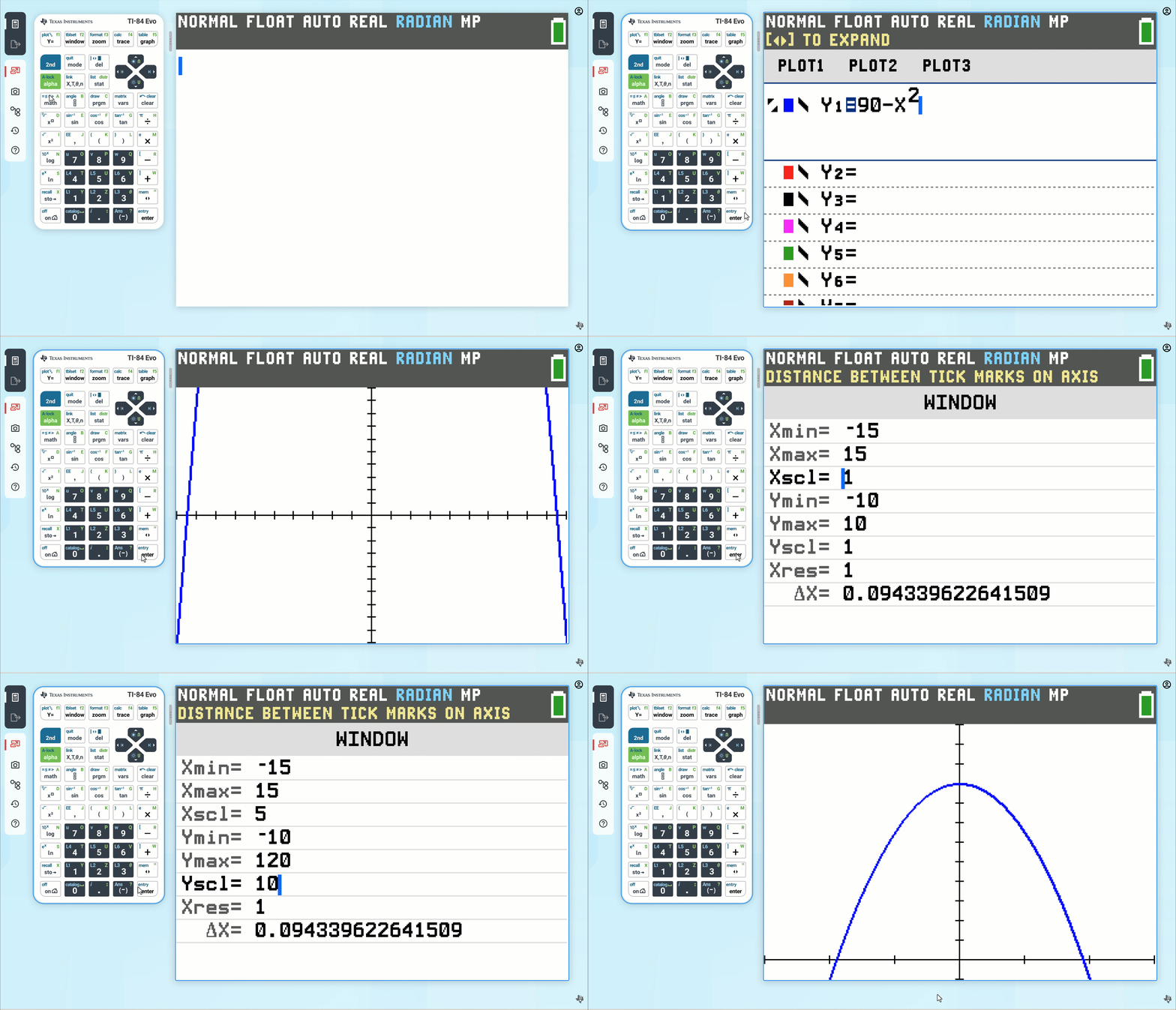
Function Editor App Icon

Function Editor App 功能特色

TI-84 Evo Home Screen(主畫面)頂部的第二個圖示是 Function Editor App。反白選取該圖示並按下 enter 鍵即可進入 Function Editor App

按下 home 鍵將會把您帶回 Home Screen。再次按下 home 鍵則會讓您回到 Function Editor App

有關 Function Editor App 的選單與功能,請參閱以下說明:
  • Defining and entering functions (定義與輸入函數)
  • Setting up the viewing window for a graph (設定圖形的檢視視窗)
  • Setting up the formatting options for the graph space (設定圖形空間的格式化選項)
  • Using the zoom features (使用縮放功能)
  • Exploring Points of Interest Trace (探索興趣點追蹤)
  • Viewing and using the table (檢視與使用數值表)

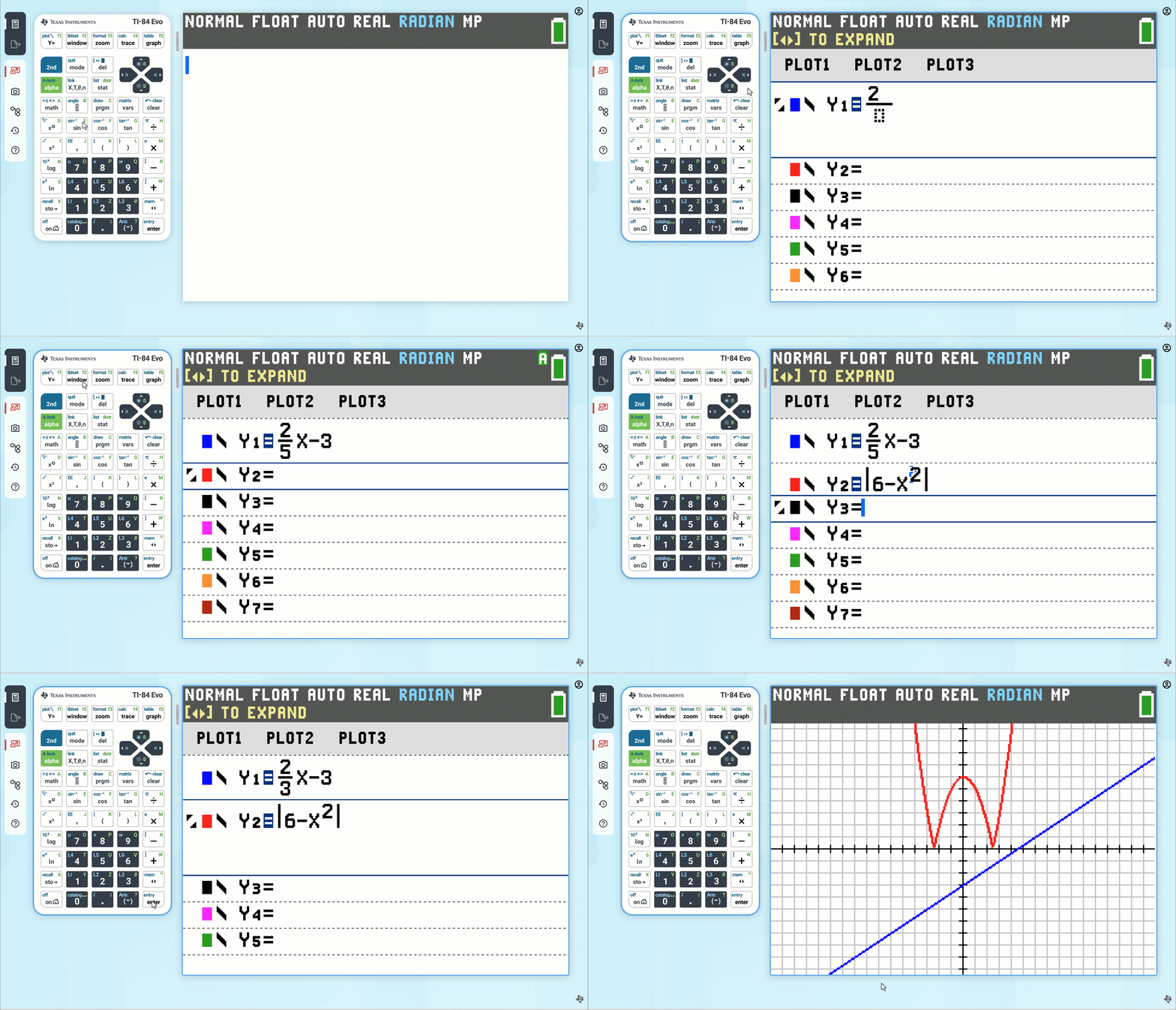
Defining and entering functions
(定義與輸入函數)

  1. Home Screen 選取 Function Editor 圖示,或按下 y= 以顯示 Y= editor
  2. 按下向下箭頭鍵 將游標移動到您想要定義或編輯的函數。
  3. 按下 clear 鍵以清除函數。
  4. 輸入或編輯表達式以定義函數。
    • 您可以在表達式中使用函數與變數(包括矩陣 matrices 與清單 lists)。當表達式計算出非實數(nonreal number)時,該數值不會被繪製;不會回傳錯誤。
    • 您可以透過按下 alpha 搭配 F1 - F4 來存取快捷選單。
    • 在函數模式(function mode)下,函數中的獨立變數為 XFunc 模式將獨立變數鍵定義為 X。若要輸入 X,請按 X,T,θ,n 鍵,或按 alpha 搭配 X
    • 當您輸入第一個字元時,等號 = 會反白顯示,表示該函數為作用中(active)狀態。
    • 當您輸入表達式時,它會作為使用者定義函數儲存至 Y= editor 中的變數 Yn 裡。
  5. 按下 enter 或向下箭頭鍵 將游標移動到下一個函數。
Defining and entering functions

Setting up the viewing window for a graph
(設定圖形的檢視視窗)

按下 window 鍵以存取視窗變數,這些變數決定了圖形畫面的顯示方式。

Setting up the formatting options for the graph space
(設定圖形空間的格式化選項)

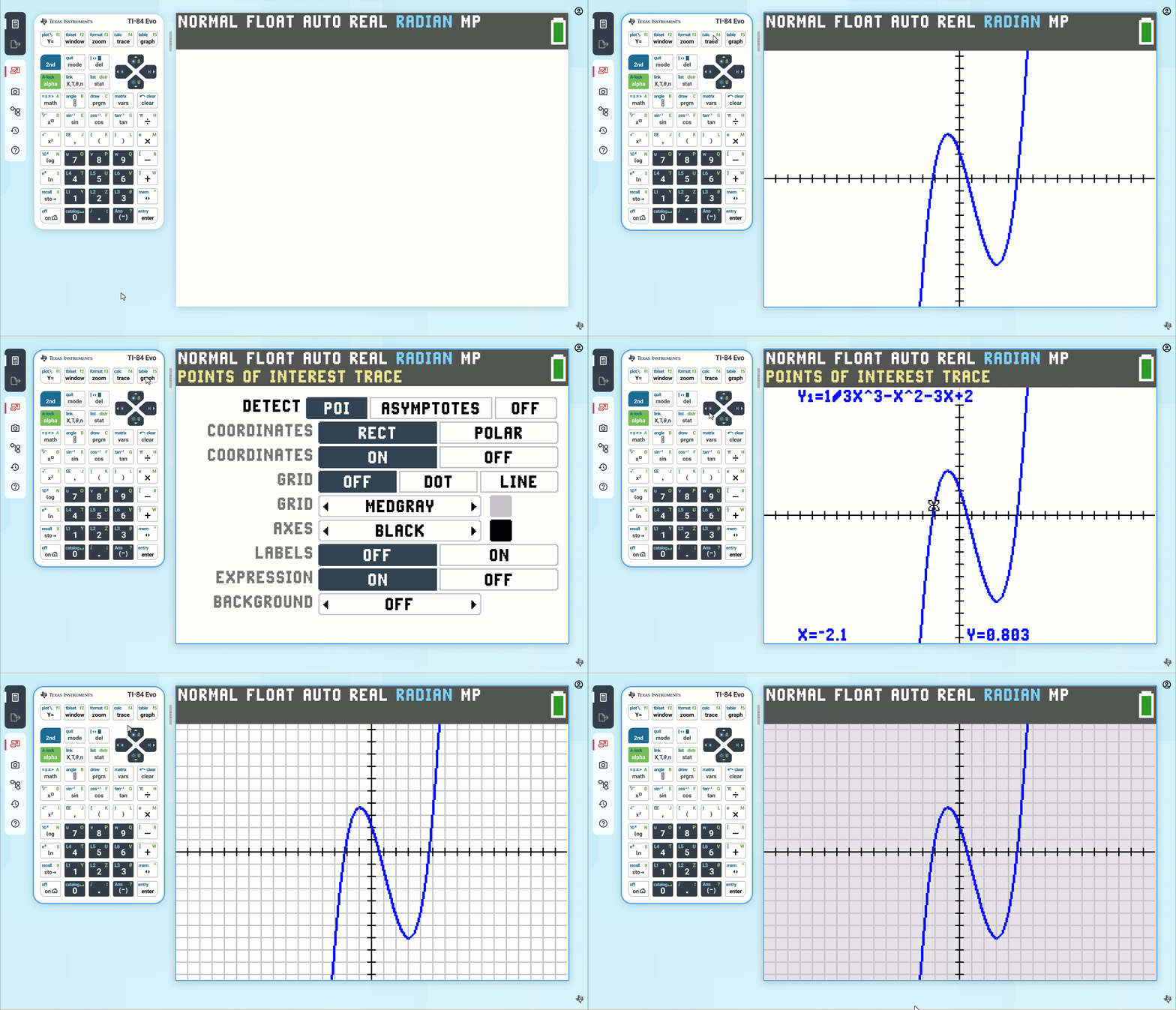
按下 2nd 搭配 zoom (format) 鍵以存取所有的圖形格式化選項。

此選單包含了興趣點追蹤(points of interest trace)、網格(grid)以及背景顏色(background color)等選項。
Setting up the formatting options for the graph space

Using the zoom features
(使用縮放功能)

按下 zoom 鍵以存取快速縮放選項。

快速縮放選項包括 ZDecimal(預設視窗)、ZStandardZoomFit 以及 ZoomStat 等選項。

Exploring Points of Interest Trace
(探索興趣點追蹤)

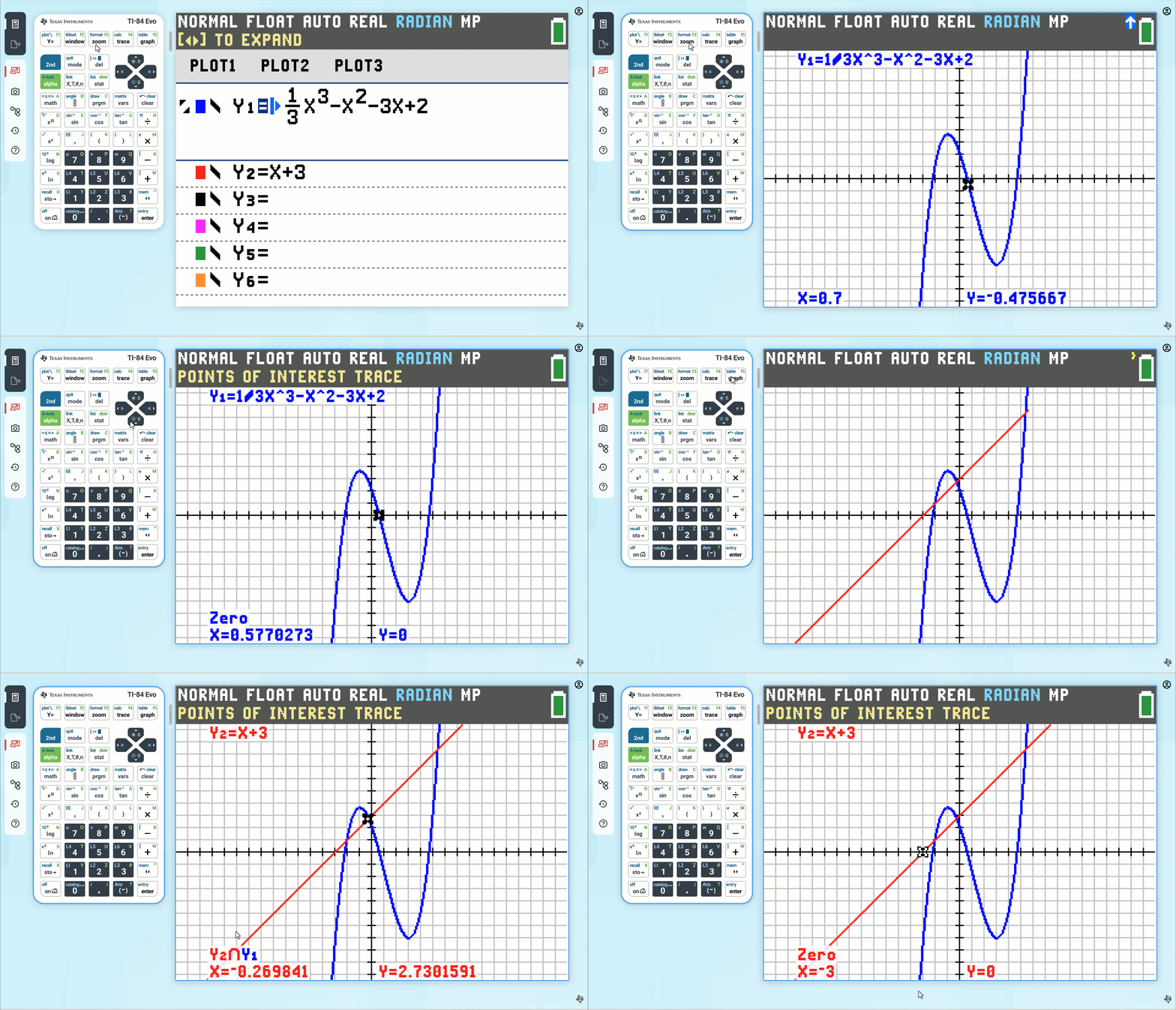
按下 2nd 搭配 trace (calc) 鍵以存取興趣點追蹤(Points of Interest Trace, POI)功能。此功能預設為開啟狀態。

POI 允許在追蹤函數時進行圖形分析,包含函數的交點(intersections)、極小值(minimums)、極大值(maximums)、y 軸截距(y-intercept)以及零點(zeros)。
Viewing and using the table
(檢視與使用數值表)

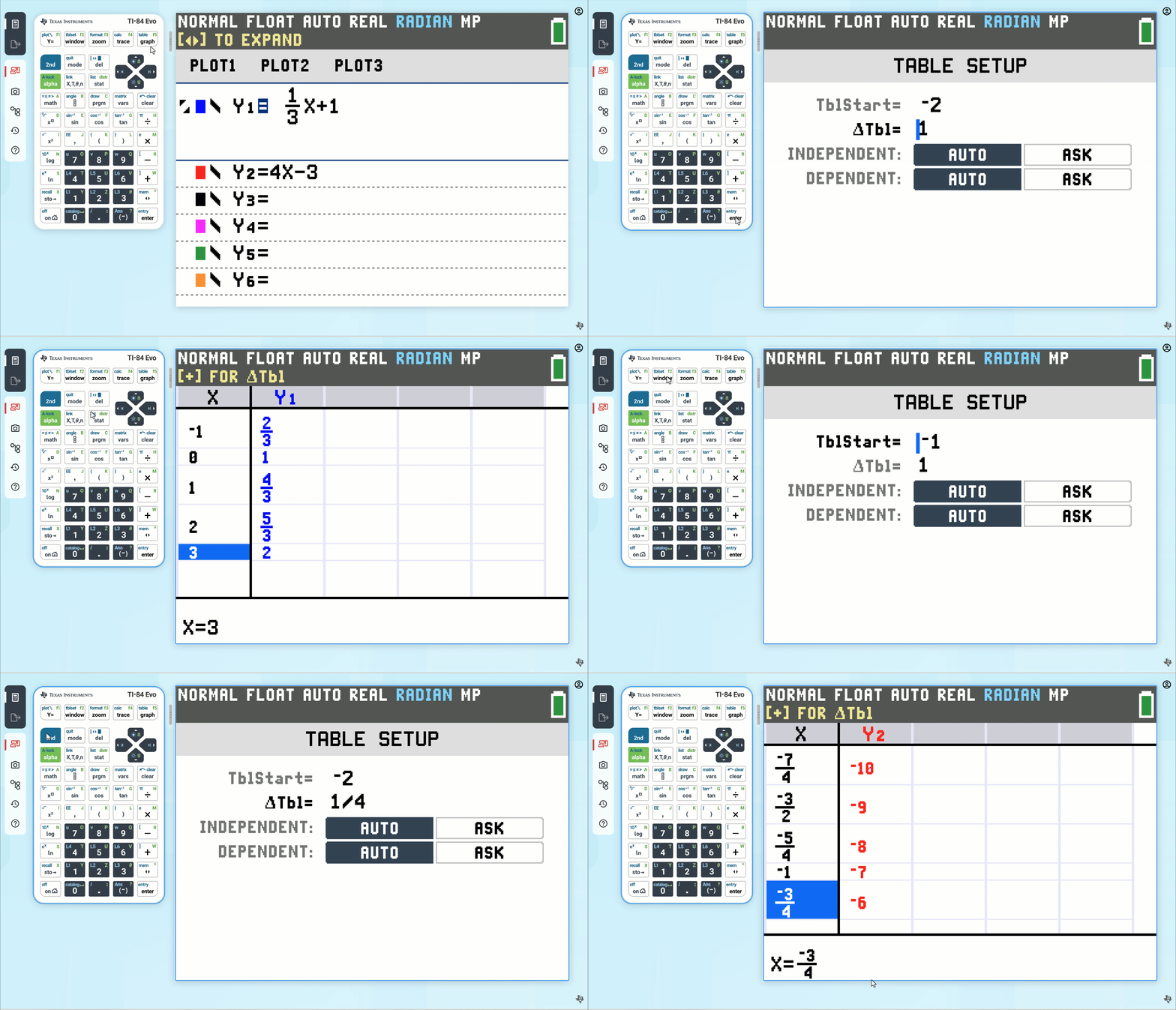
當函數在 Y= editor 中輸入完成後,您可以透過按下 2nd 搭配 graph (table) 鍵來檢視數值表。

Note (備註):

表格設定(table setup,按 2nd + window)決定了表格數值的顯示方式。如果表格結果未如預期呈現分數格式,請檢查表格設定值。混合使用小數與分數時,將不會保留分數格式。
← 回到主畫面
關於我們 產品介紹 最新消息 教育與教學資源 經銷據點 證書驗證 聯絡我們 線上商店
© Copyright Kuang-Tien International Co. Ltd. All rights reserved.